
Use count-ins and click tracks
Start a song together with a count-in, keep a click through the introduction, or use it for the whole song.
Open player settings
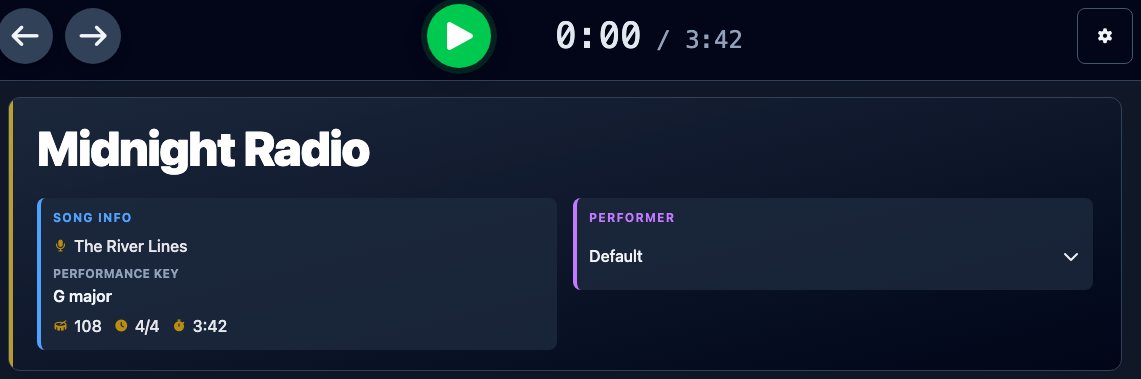
From the Songs list, choose Play for a song to open it in performance view. You can also reach performance view by playing a song from a show or opening it on Stage.
Choose the Player settings cog beside the playback controls.
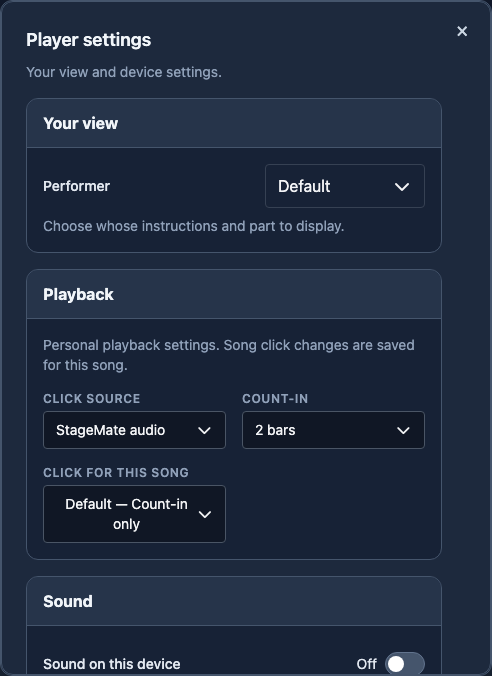
Player settings let you choose a count-in, decide how long a click runs, select its source, and control whether this device plays sound. The following steps explain each choice.
Choose a count-in
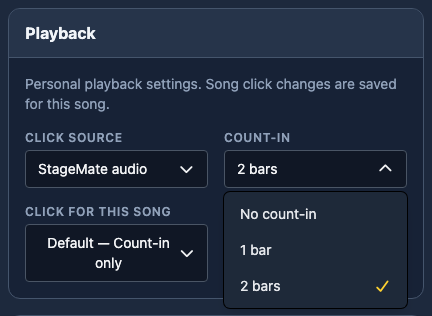
Under Count-in, choose how much lead-in you want before the song starts:
- No count-in starts without a lead-in.
- 1 bar gives you one bar before the song starts.
- 2 bars gives you two bars before the song starts.
The count-in can be visual, audible, or both, depending on your click source and device sound settings.
Turn on sound on your device
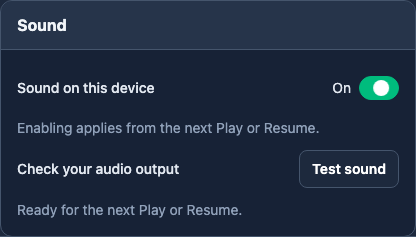
In Player settings, select StageMate audio as the click source and turn on Sound on this device. On Stage, the leader selects the source and each performer can choose whether their own device makes sound.
Use Test sound to check your audio output. If the player prompts you to enable sound, tap Enable sound. Sound applies from the next Play or Resume; turning it on during a run will not restart that run.
Choose how long the click runs
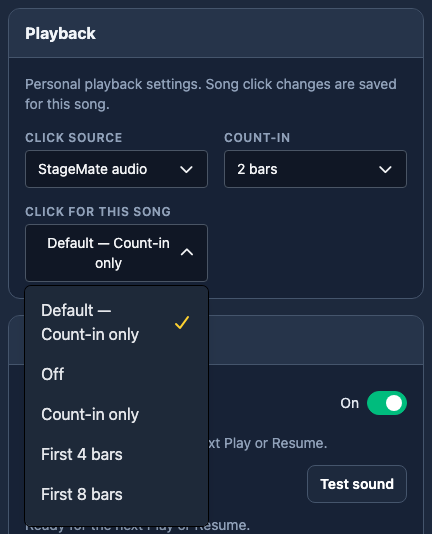
In Player settings, use Click for this song to choose how long the click runs:
- Default uses the library's default click duration.
- Off gives this song no audible click.
- Count-in only stops the click when the song starts.
- First 4, 8, 16 or 32 bars continues the click through the chosen opening bars.
- Whole song continues until the song's saved duration ends.
- Until stopped continues until you stop playback, even if scrolling reaches the end.
Opening bars are counted after the count-in. With a two-bar count-in and First 8 bars selected, the click plays for the count-in and the first eight bars of the song.
Your choice is saved with the song and used when playing the song on its own, in a show or on Stage. You can also change it in Song Info in the editor. Connect to the internet to change a song's saved click setting.
Set a default for your library
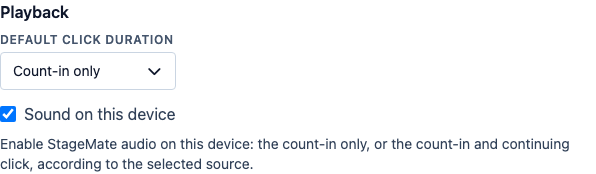
If you own the library, open the main Settings menu and find Playback. Choose a Default click duration for songs that use the default.
For example, choose Count-in only for most songs, then set First 8 bars for a song with a piano introduction. Changing the default affects songs set to Default; songs with their own choice keep it.
Frequently asked questions
These settings let you choose both the band's click and whether you hear it on your device.