
Songs guide
Add song timing
Set the song's duration and mark when sections begin to guide scrolling during playback.
1
Set the song duration
Choose Songs and open the song. In Song Info, set Duration to the total playing time in minutes and seconds. On a narrow screen, open Song Details first.
2
Mark when each section begins
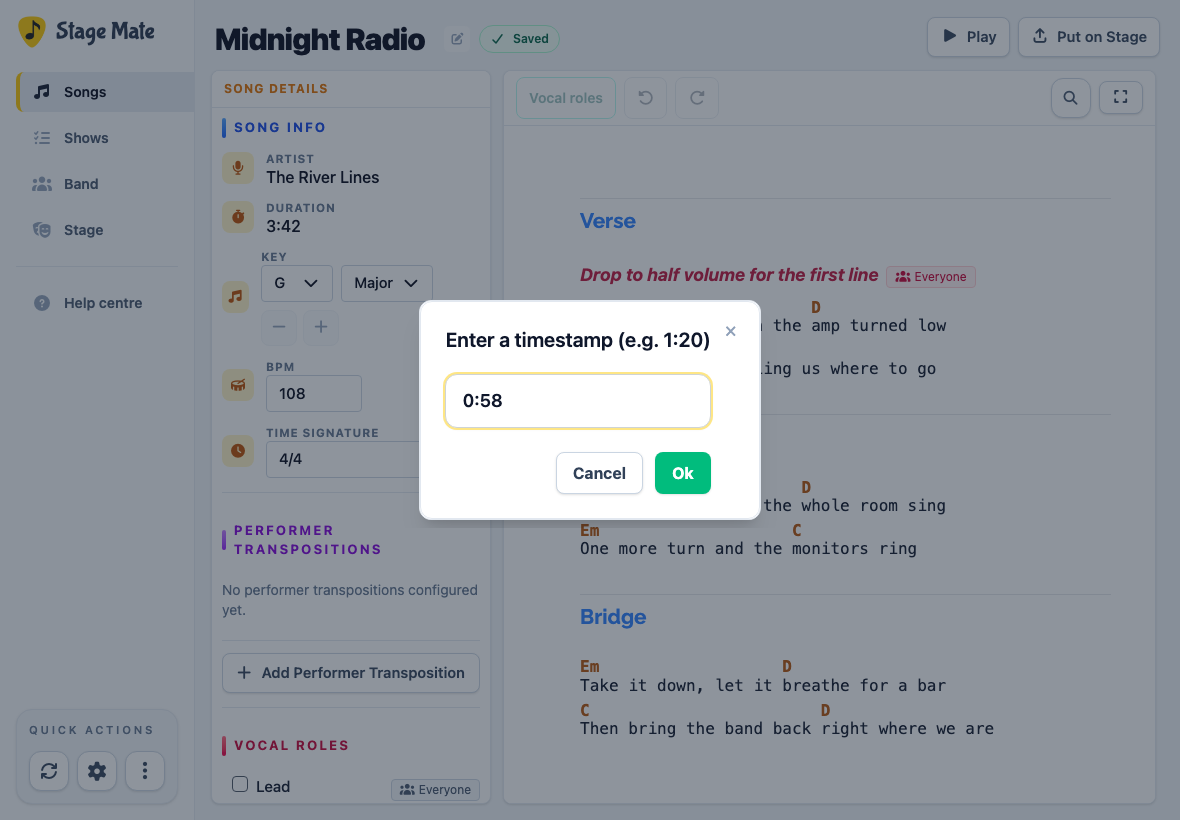
Move over a section heading and choose its clock. Enter the point where that section begins, such as 0:58, then choose Ok. Repeat for the sections you want to mark.
3
Check the timing in playback
Choose Play and check the scrolling against your recording or rehearsal. Return to the editor to adjust the duration or section timestamps where needed.
Keep timestamps in song order and within the total duration. Check any timing warnings beside a heading.
Common questions
Frequently asked questions
Use timings that match the arrangement your band actually plays.
What format should a timestamp use?
Use minutes and seconds, such as 0:58 or 1:20. Keep section timestamps in order and within the song's duration.
Can I add a timestamp to an individual line?
Timestamps belong to section headings. Add a heading where you need another timing reference.
How do I change or remove a timestamp?
Choose the timestamp beside the section heading to edit it, or choose Remove timestamp in the dialog.