
Prepare for offline use at a gig
Save the band's songs and shows on each device so everyone can still open their charts if the venue's internet drops out.
Check and refresh the copy on each device
While online, open a song on Live Stage. Choose Stage options (three dots), then Offline copy details.
Choose Save for offline use if there's no copy, or Refresh offline copy to update it. Wait for Available on this device, then check the last-saved time and the song and show counts. If storage is unavailable or saving fails, resolve that while the device still has a connection.
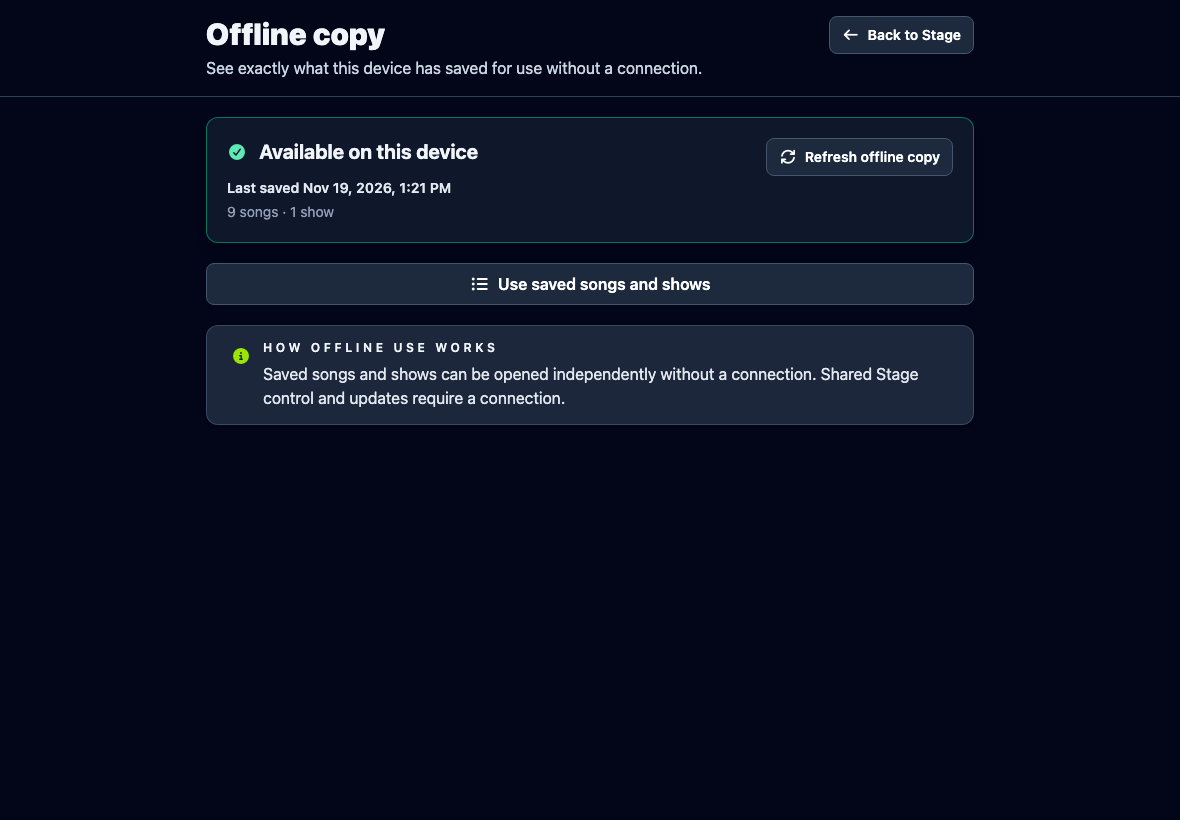
Try the saved copy before the gig
Choose Use saved songs and shows and open a chart or show you plan to play. The device switches to independent playback. Choose Back online — Rejoin Stage to return to the live session.
Keep playing if the connection drops
Stage keeps trying to reconnect. You can keep using the chart already on screen. To open a different saved song or show, choose Reconnecting…, then Use Saved Songs and Shows if a copy is available.
While using saved songs and shows, each device changes songs and scrolls independently. When the connection returns, choose Back online — Rejoin Stage to return to the shared session.