
Edit chords and lyrics
Shape an imported chart directly in the song editor, organise its sections, and check the result before rehearsal.
Open the song you want to edit
Choose Songs from the main navigation, then choose the song's name in the list. Stage Mate opens it in the song editor.
Find the document and song details
The editor has one editable document containing song lines, section headings and instructions. Edit chords, lyrics and vocal markings in that same chart.
The Song Details sidebar holds Song Info: artist, duration, key, performance transpose, BPM and time signature. After transposing, it shows original and performance keys. On a narrow screen, open Song Details to reach these panels. Vocal parts and performer transpositions are available on Duo and Band plans.
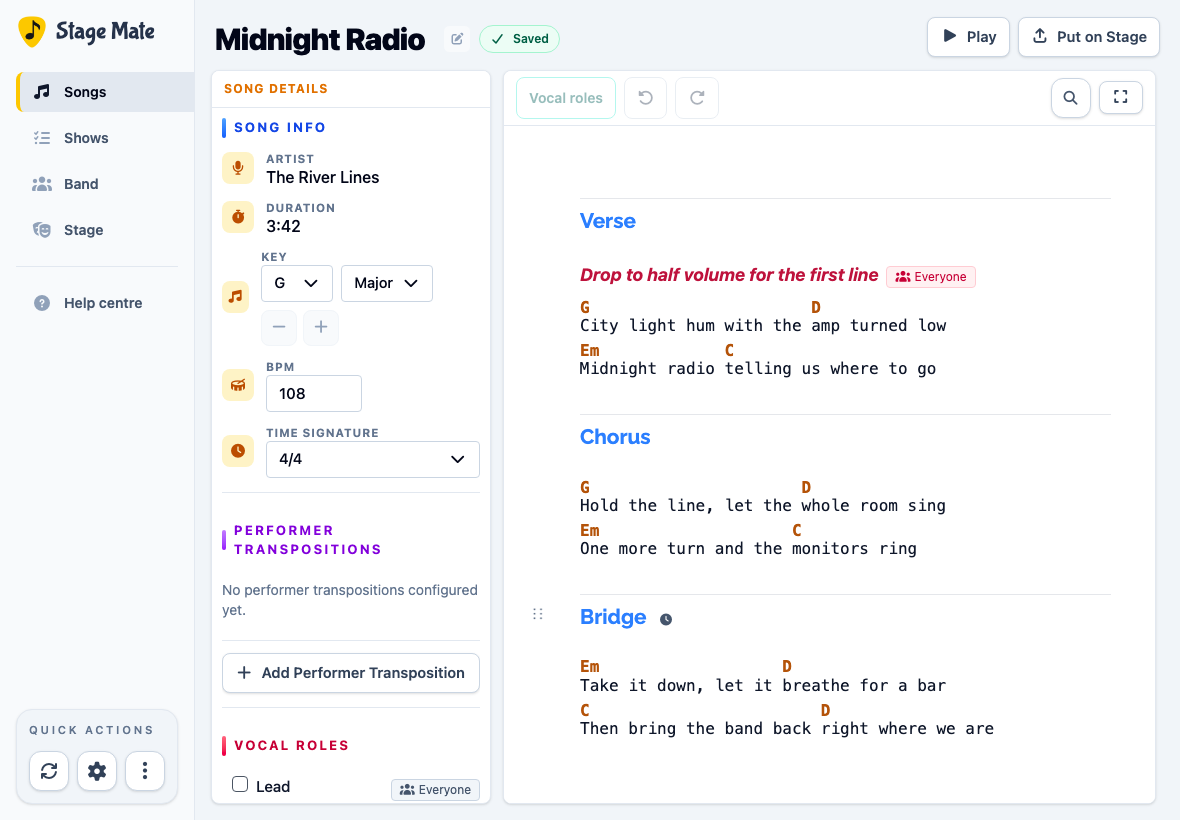
Edit a chord or lyric where it appears
Choose the chord or words you want to change and type the correction. Chords remain aligned with their position in the lyric line.
Press Enter in a lyric line to split it at the cursor. You can also paste a Chord Sheet or ChordPro passage directly into the document.
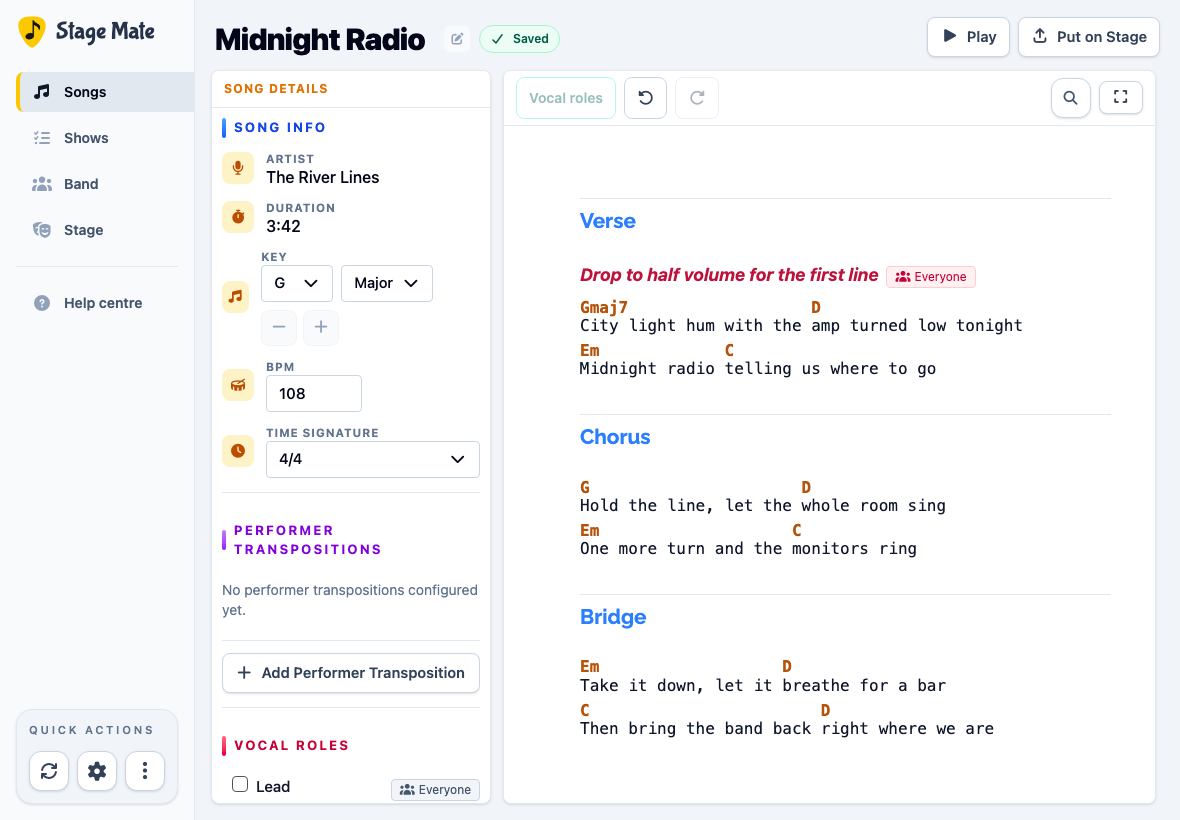
Add, remove or reorganise lines and sections
Use the plus control beside a row, or type / in an empty row, to insert a Song line, Section heading or Instruction. Edit headings such as Verse or Chorus directly.
Choose a row's handle for Copy, Cut, Duplicate and Delete, with Paste under Insert. Under Turn into, choose a different block type: Song line, Section heading or Instruction. Drag the handle to move a row.
Turning a song line into a heading or instruction removes its chords. Undo restores them if you change your mind.
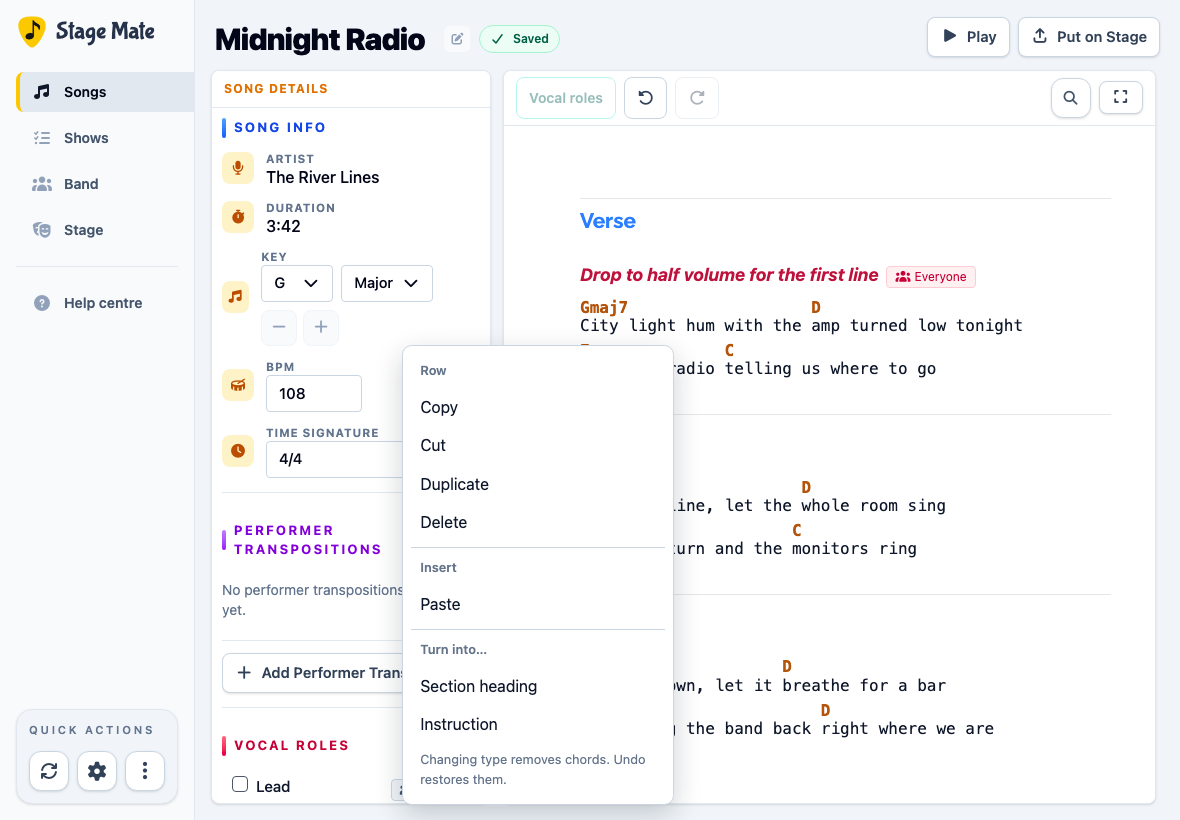
Preview the song
Choose Play to view and rehearse the song using the performance screen. Return to the editor whenever the chart needs another adjustment.
Frequently asked questions
These answers cover the editing actions most useful when cleaning up a chart.